

Access levels
Open Agents. Set each agent’s level in its What it can do dropdown.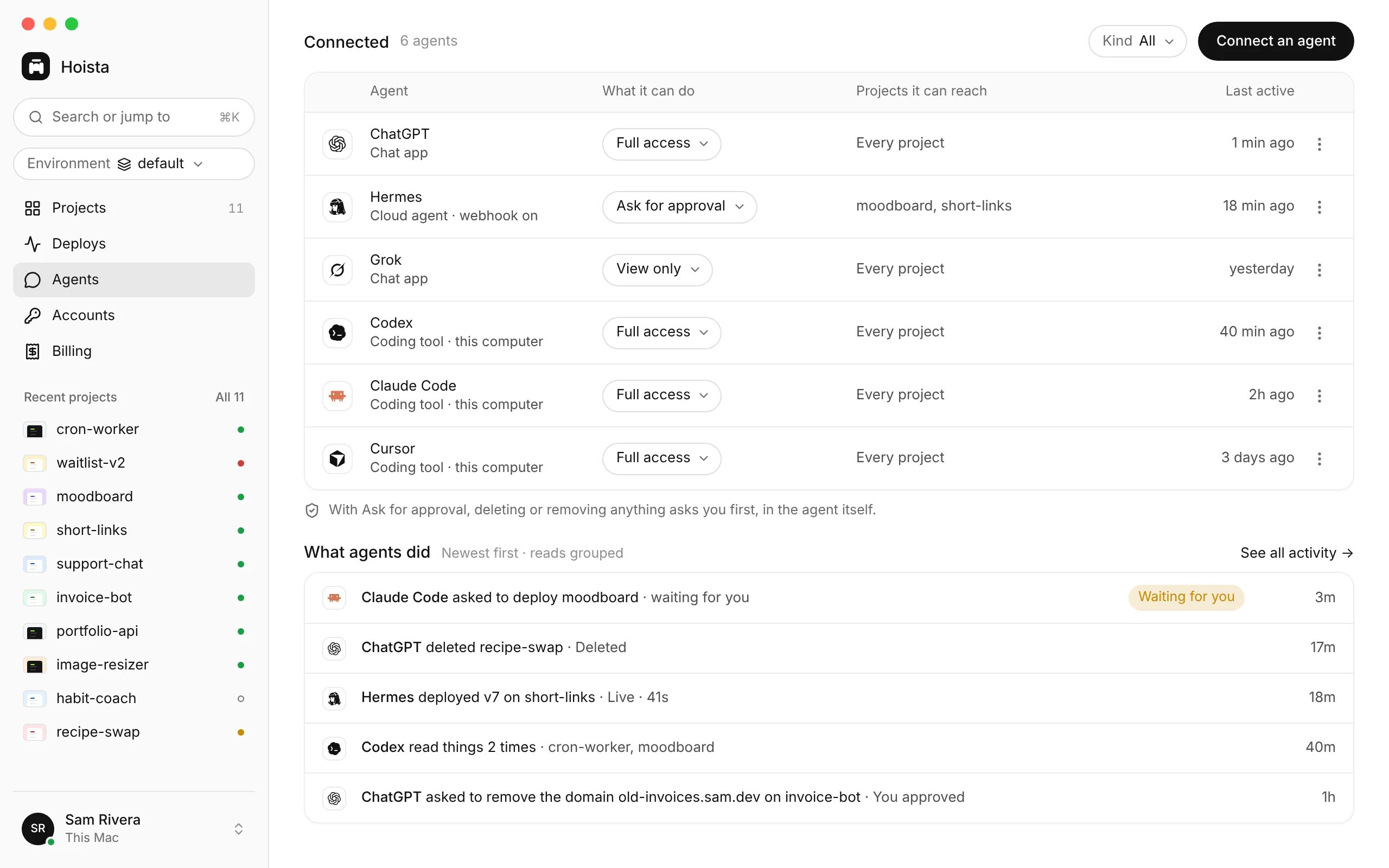
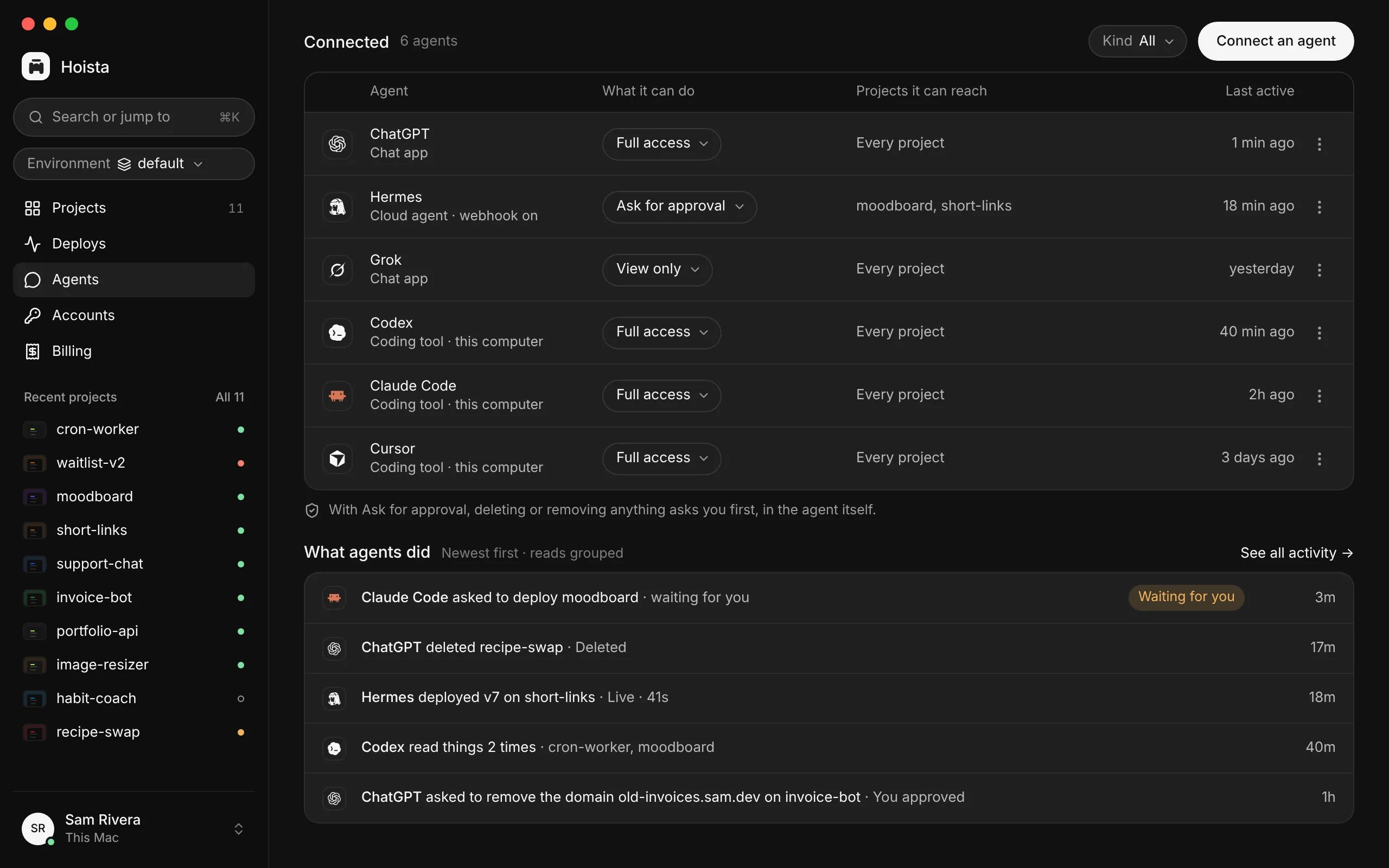
Agents, with each agent’s access level in its own dropdown and what agents did below.
Narrow the access
Open an agent’s access to set the full limits. They apply top to bottom, and each step can only narrow the one above it.- Environments it can reach. Projects in other environments are hidden from it.
- Projects it can see and change: all of them, or only the ones you pick.
- What it can do in those projects.
- Exceptions: narrower access for some resources. The strictest one that applies wins.
- Access ends: no end date, or after 1, 7, 30 or 90 days.
From the CLI
AGENT is the agent’s name or ID. --access takes view (View only), ask (Ask for approval) or full (Full access). Use --projects for some projects or --all-projects for every one, and --expires never to remove an end date. hoist agents rotate gives a local agent a new token, and the old one stops working. Revoking removes the agent’s access to Hoista. Neither changes any provider token.
Pause or cut off every agent
hoist agents stop-all revokes every agent, pauses agent use and drops waiting requests, so each agent must be approved again. In Desktop, the same cutoff is in Settings → Safety.
Your projects keep running. These controls do not revoke provider tokens, and they cannot cancel an action the provider has already accepted.
Approving sensitive actions
When an agent asks for something sensitive, read the action, the target and what will happen before you approve. A message in chat saying “approved” is not an approval. The agent should wait and retry the same request after you approve it. See approvals.Related
Approvals
What Hoista asks you before an agent acts.
Connect an agent
Every tool, and how each connects.
Threat model and limits
What Hoista can’t protect against.