

Environment variables
Open a project’s Variables tab. It lists each variable, which resource uses it, and whether it is a secret, a plain setting, a value Hoista links, or a name the code reads that has no value yet. Use Add a variable, or Edit on a row. For a watched project, Paste many adds several at once.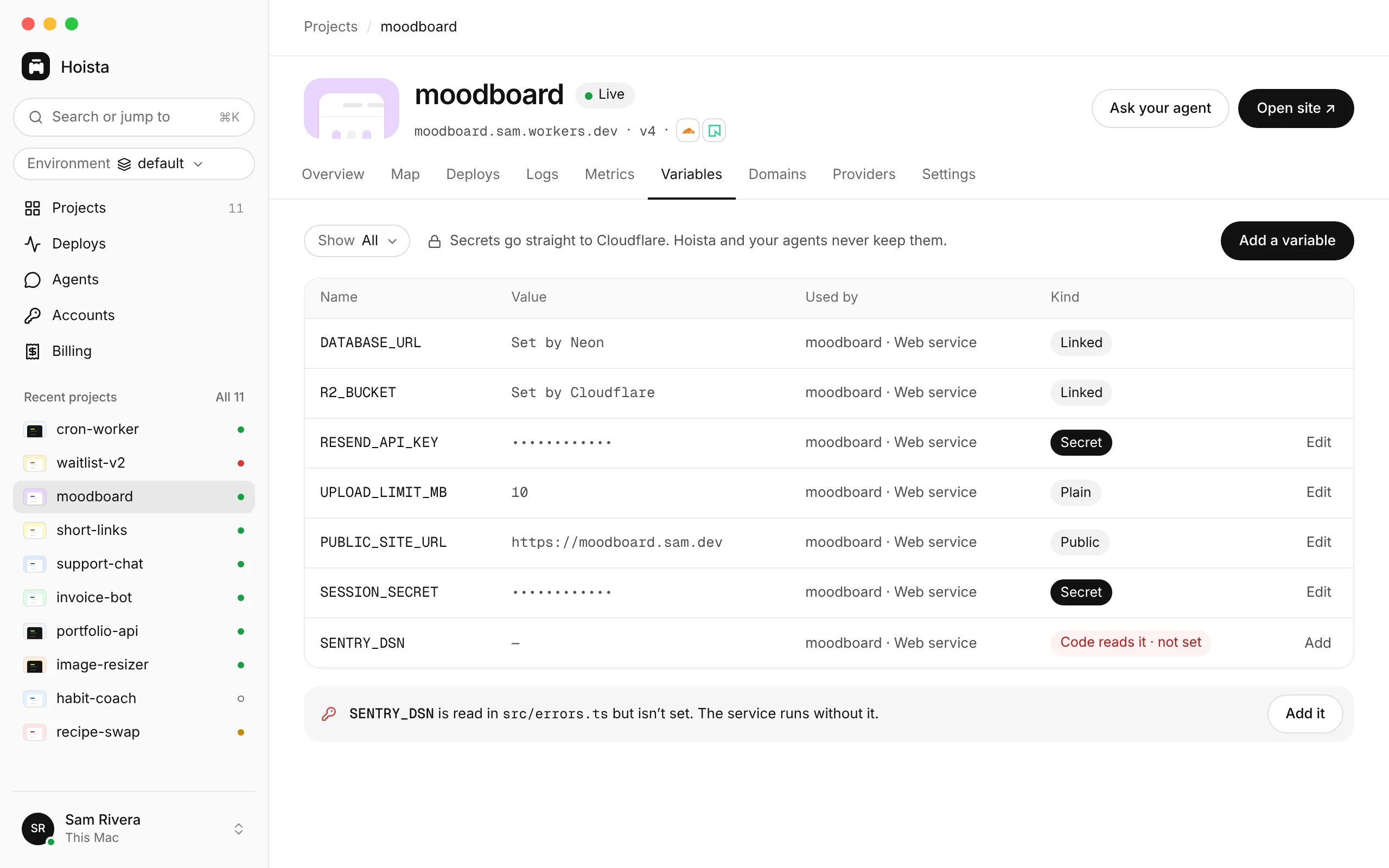
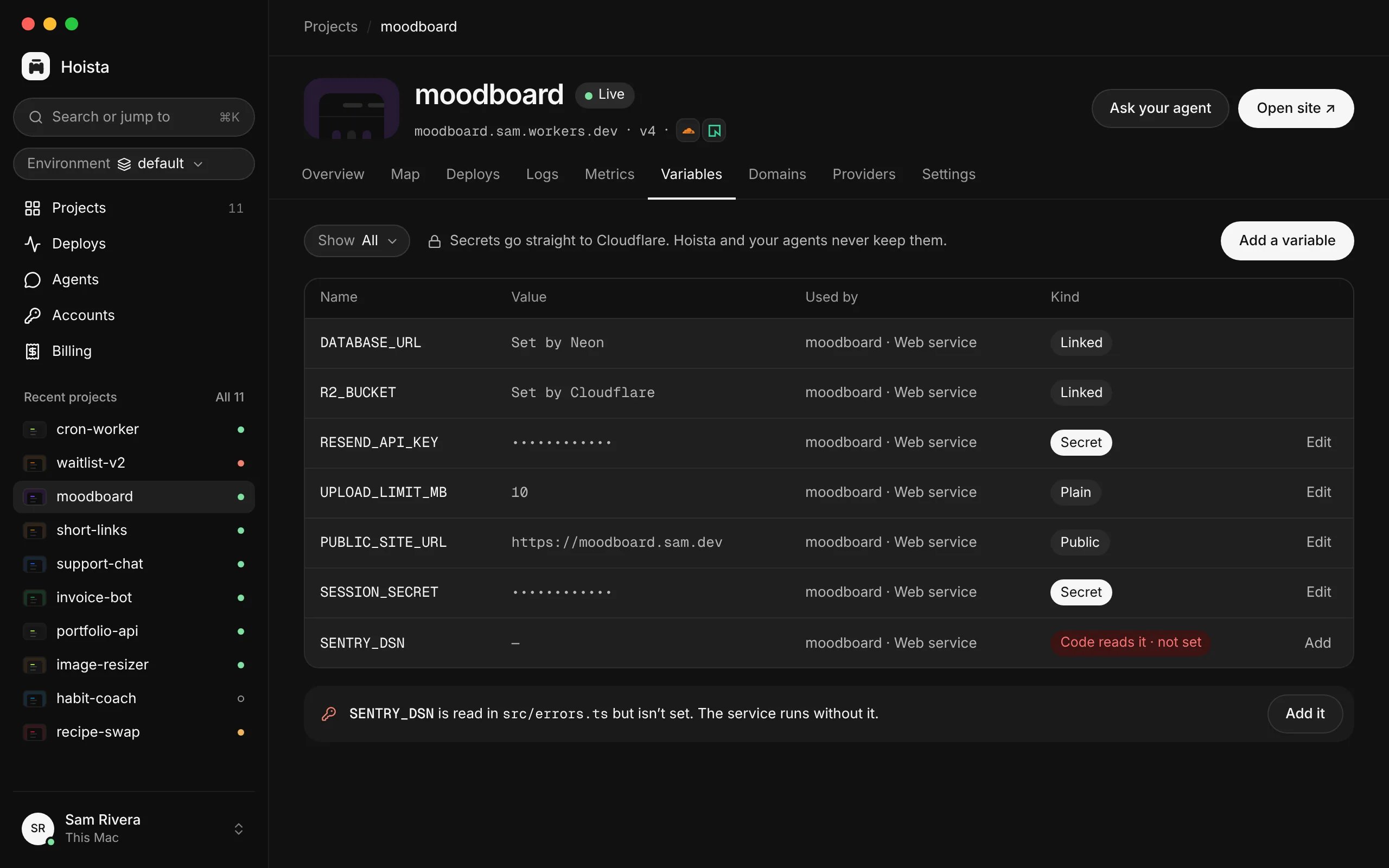
The Variables tab: each variable, the resource that uses it, and its kind. Secret values are never shown again.
hoist env set asks for each value with a hidden prompt. For scripts, pipe one value in with --value-stdin, or read NAME=value lines from a file with --file. Never pass a secret as a command-line argument. When the project has more than one resource, pick one with -r RESOURCE.
On a managed project, the new values go out in a new deploy. On a watched project, Hoista sets them at the provider, which redeploys; add --no-redeploy to skip that.
Removing a variable changes it at the provider, and the running app may stop working. Check which resource uses it first.
Secrets do not go through an agent chat. When a deploy fails because a secret is missing, you paste it on the deploy’s page in Desktop, and then your agent deploys again.
Domains
Open the Domains tab and use Add domain. Pick the resource and enter the hostname. Hoista shows the DNS records to create, then tracks DNS and certificate status.-r RESOURCE. Hoista takes the zone from the hostname’s last two labels; pass --zone if it differs, and add --create-zone to create the DNS zone as well. Adding a domain does not make it ready. Wait until DNS and the certificate check pass before you send production traffic to it.
For a watched project, you can add a domain only where the provider supports it through Hoista. Otherwise, change domains at the provider.
Related
Plan and deploy
Deploy with the new values.
Environments
Separate spaces for projects.
Credential storage
How Hoista keeps secrets.