

The window
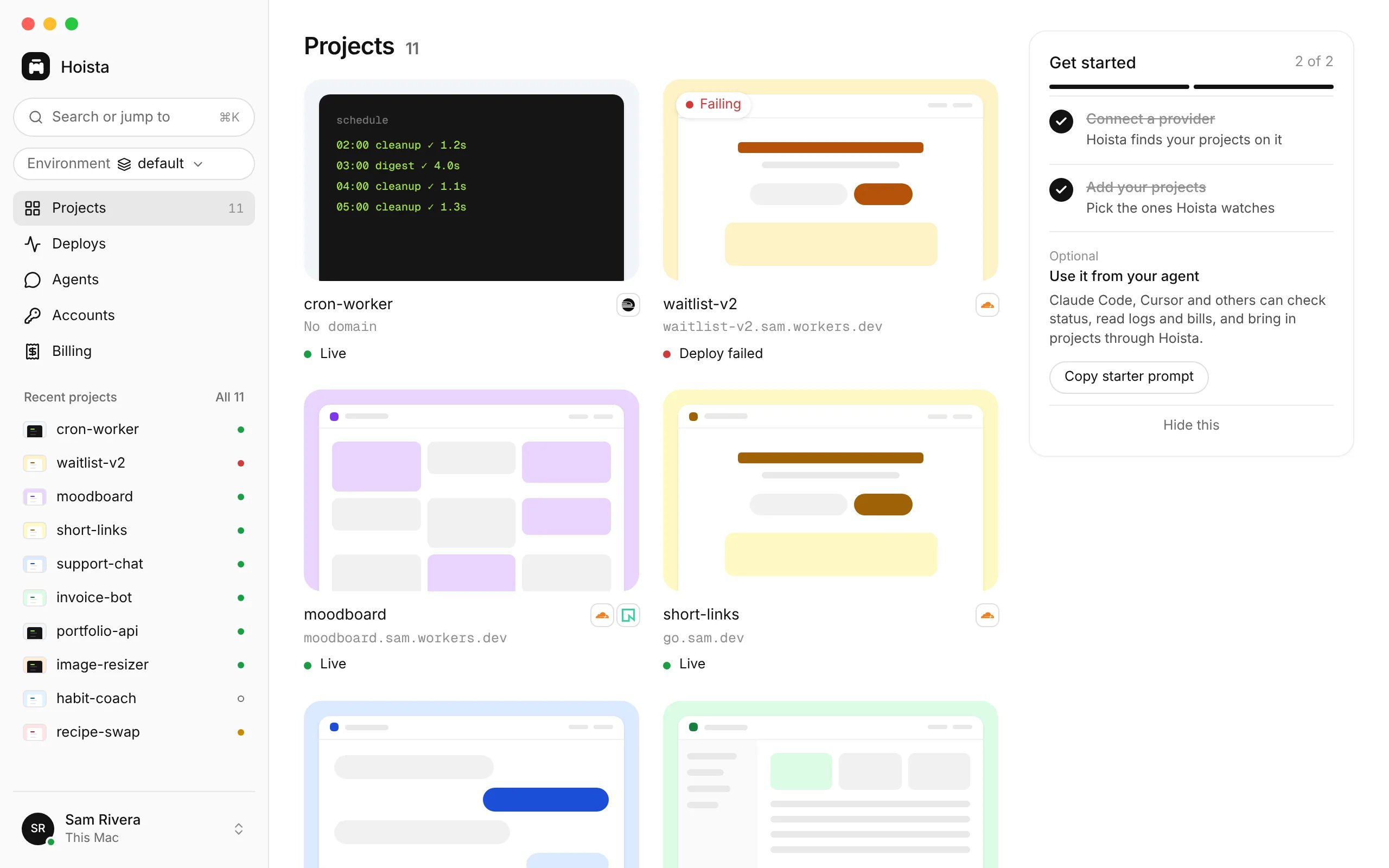
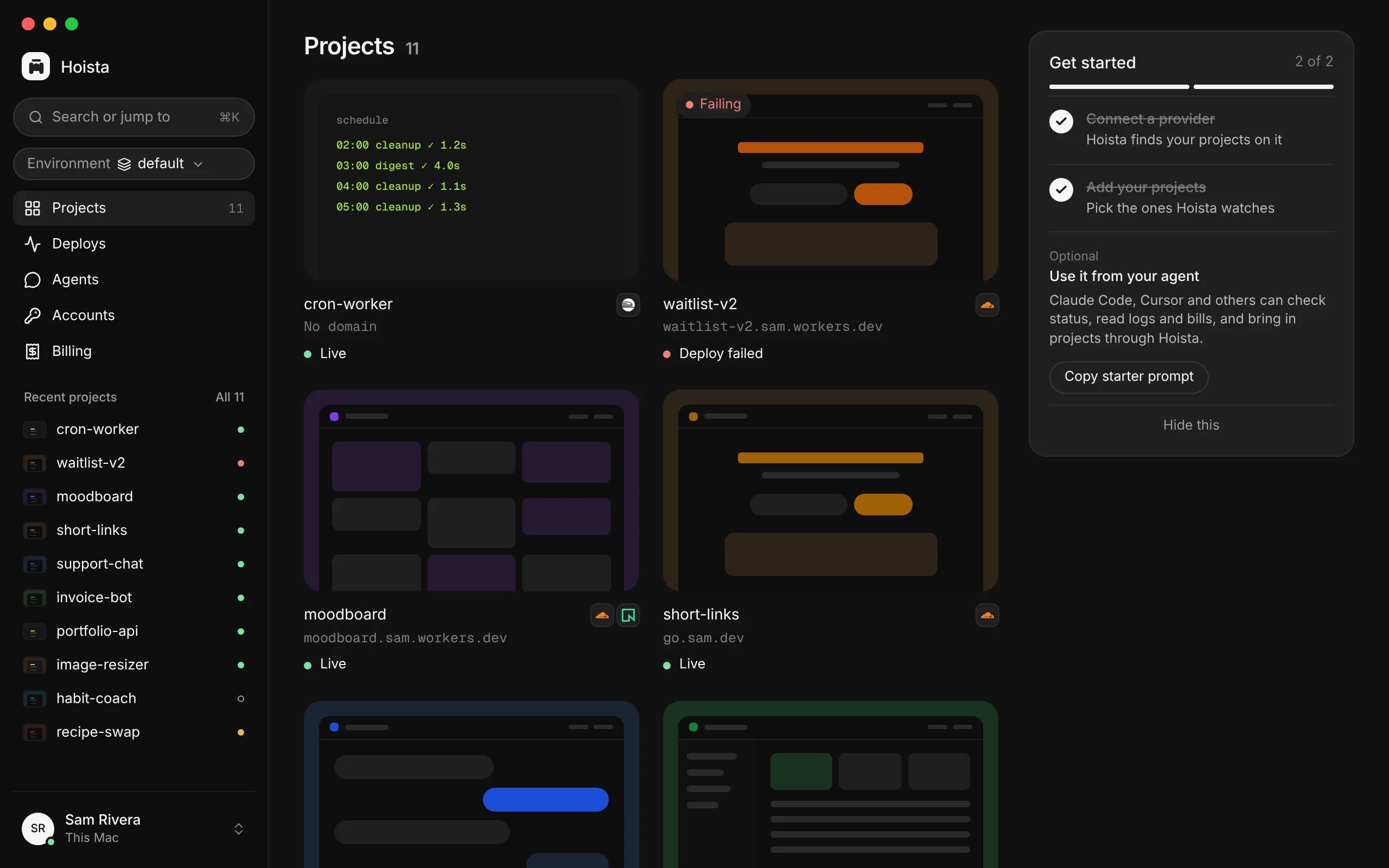
Projects, the first screen. The sidebar holds the main sections, your recent projects with their status, and the environment switcher.
Your recent projects are listed under these items. The switcher under the search box picks the environment the window shows.
Search and shortcuts
Press ⌘K to search for a project, a page or an action. In a project, it also offers to copy itshoist commands and its project ID.
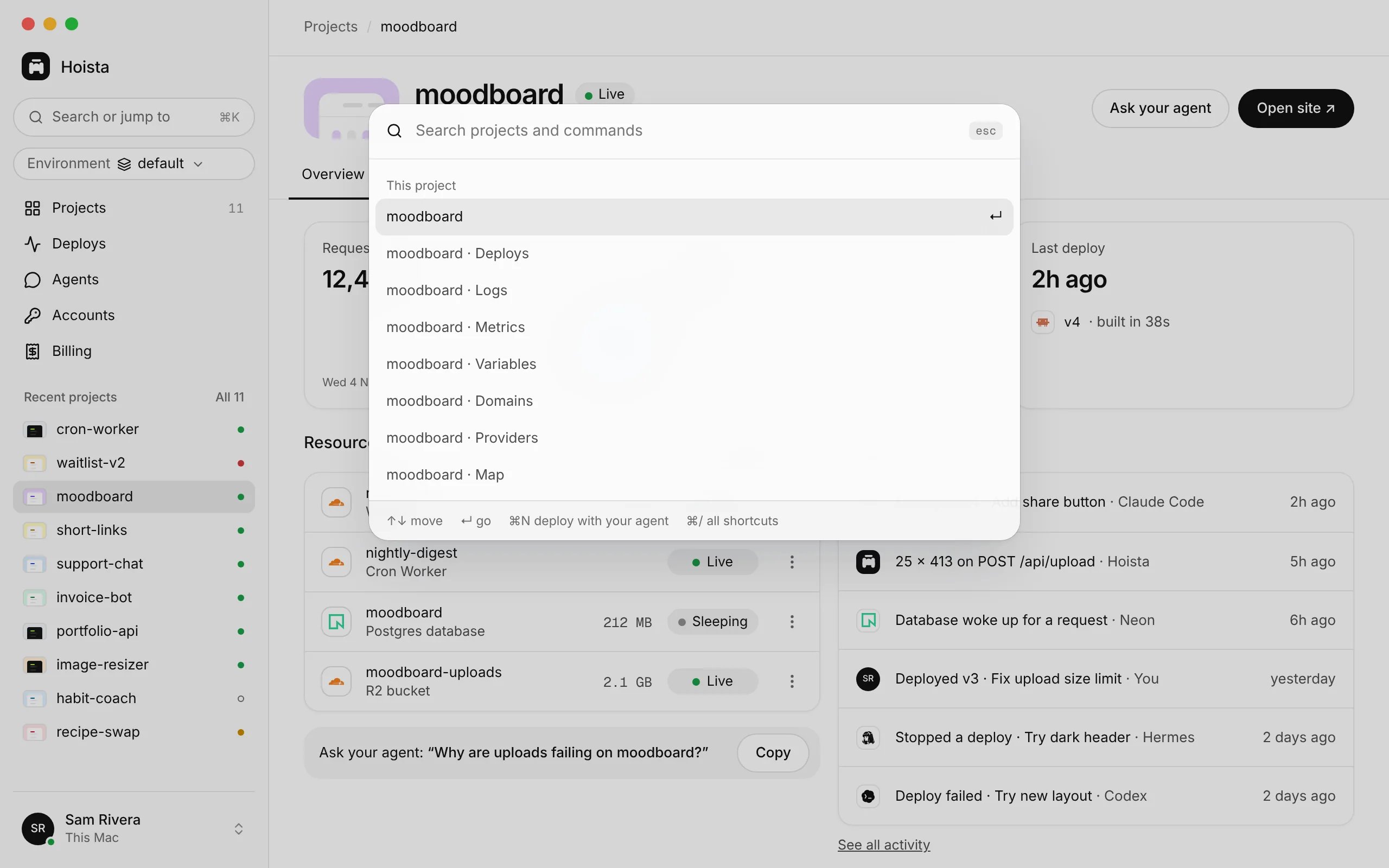
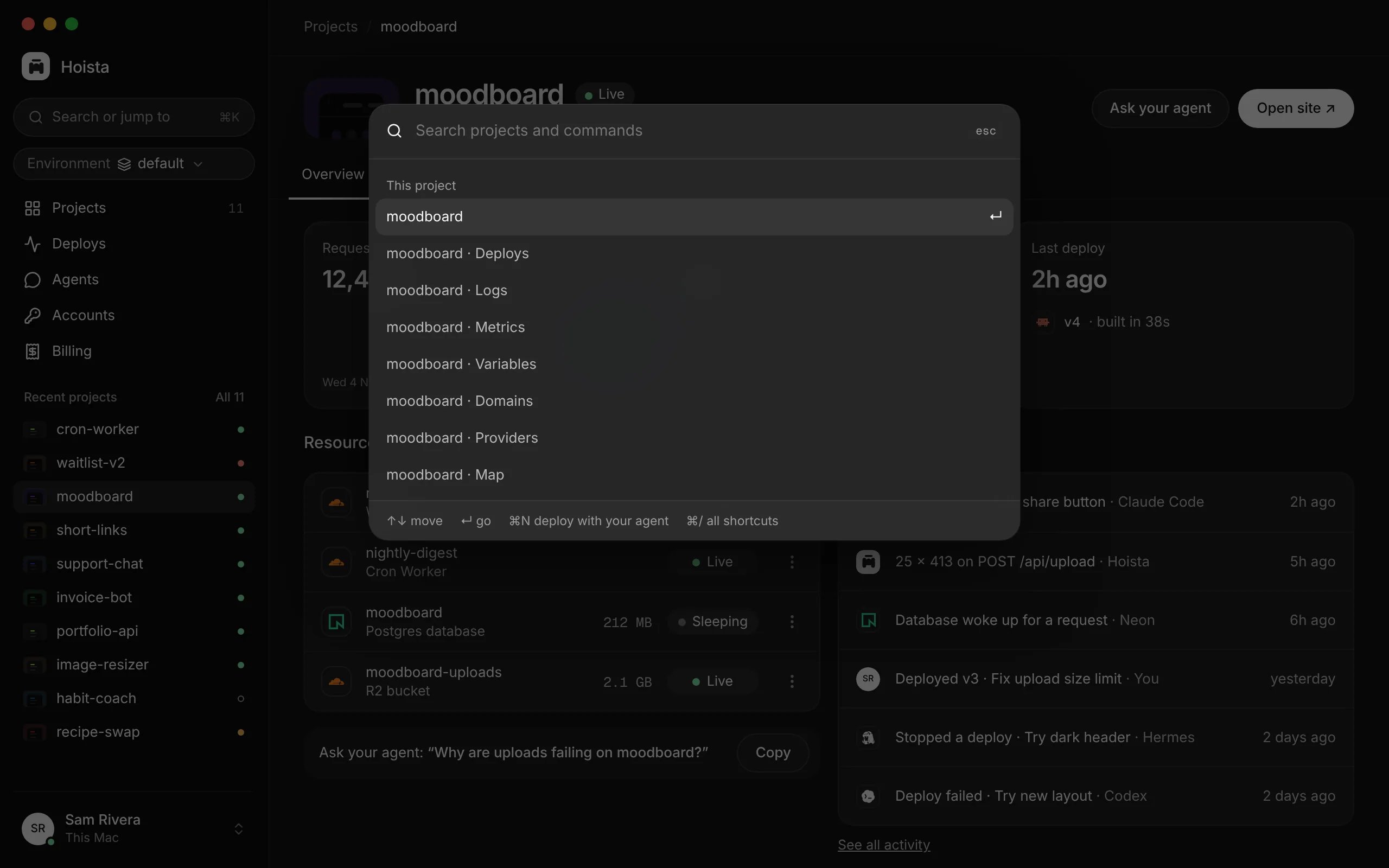
⌘K in the moodboard project: its tabs come first, then everything else that matches what you type.
Right-click copies text and links, as in any app.
A project
Open a project to see its tabs.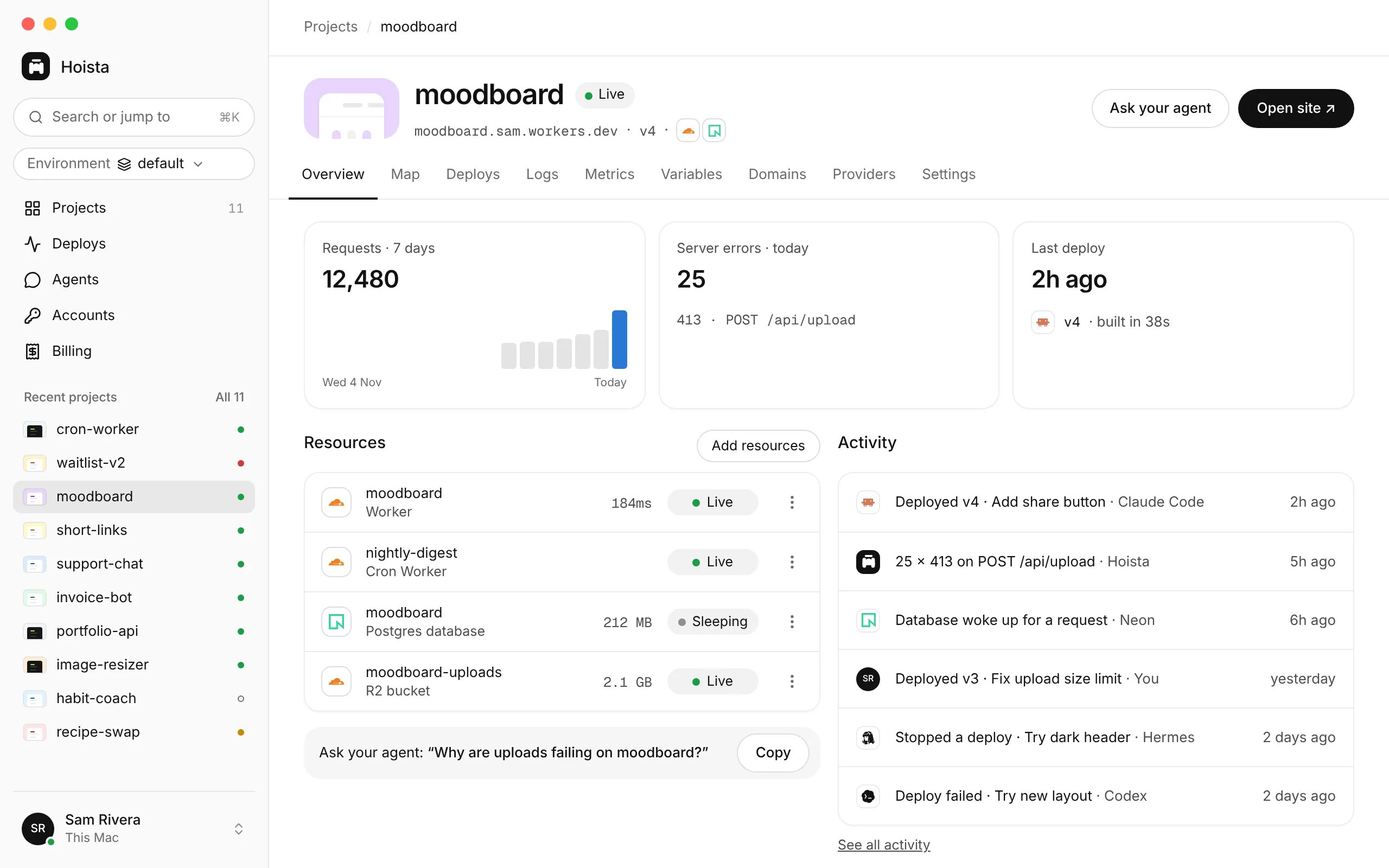
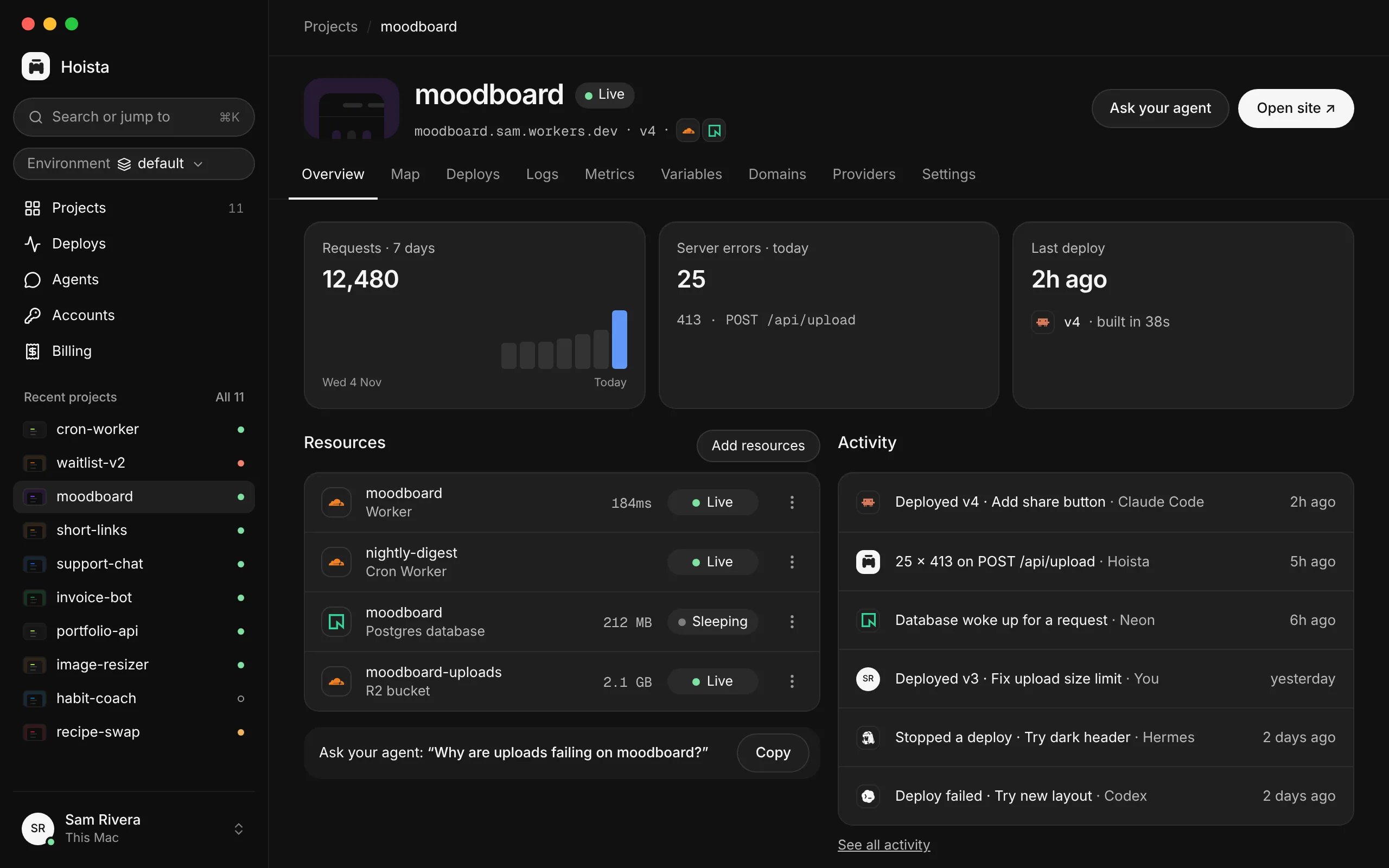
A project's Overview. The tabs along the top hold everything else about it.
Open a resource from the Map or Overview to restart, stop or delete it.
Settings
Open Settings from the profile menu, or press ⌘,. Most changes save as you make them.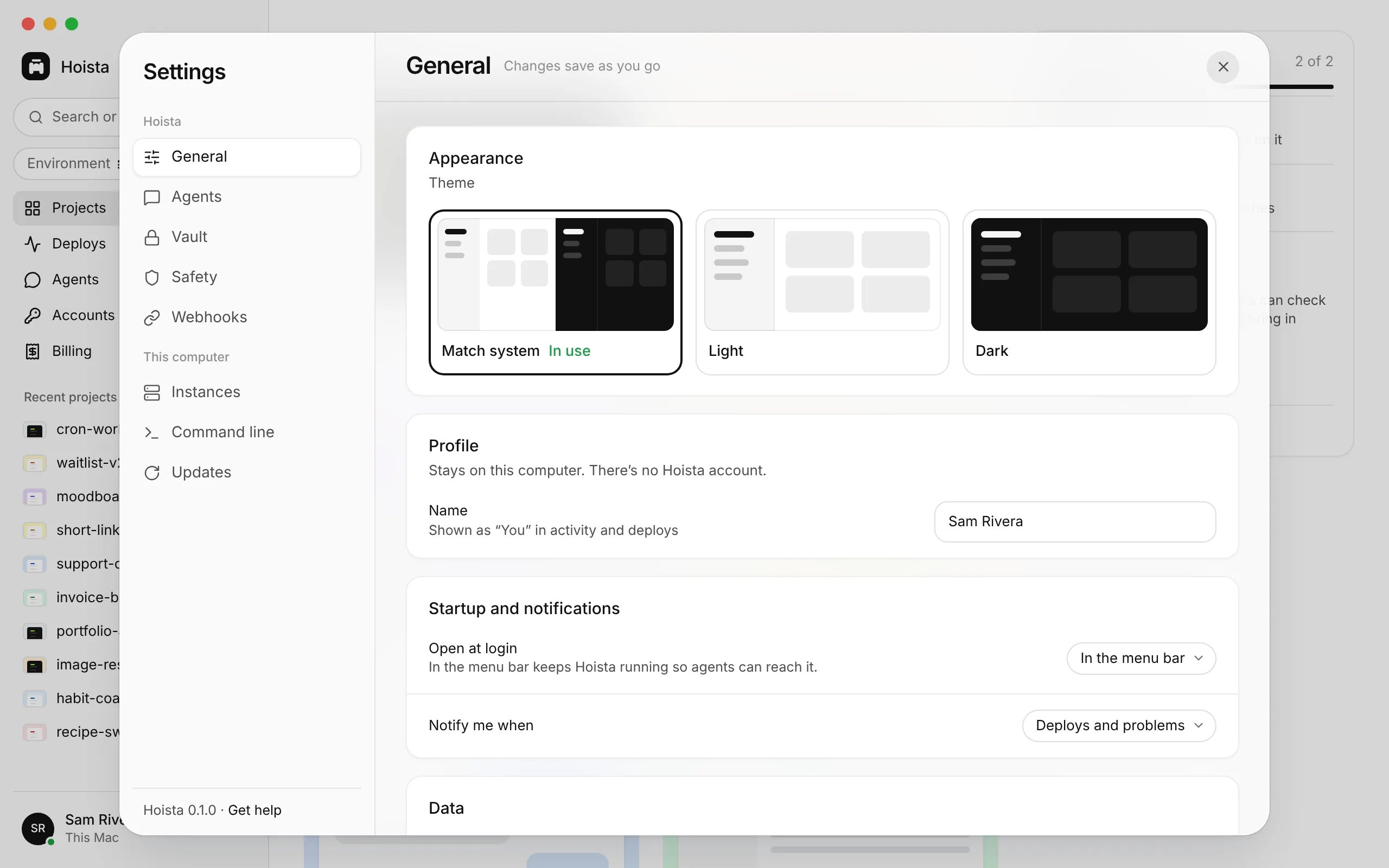
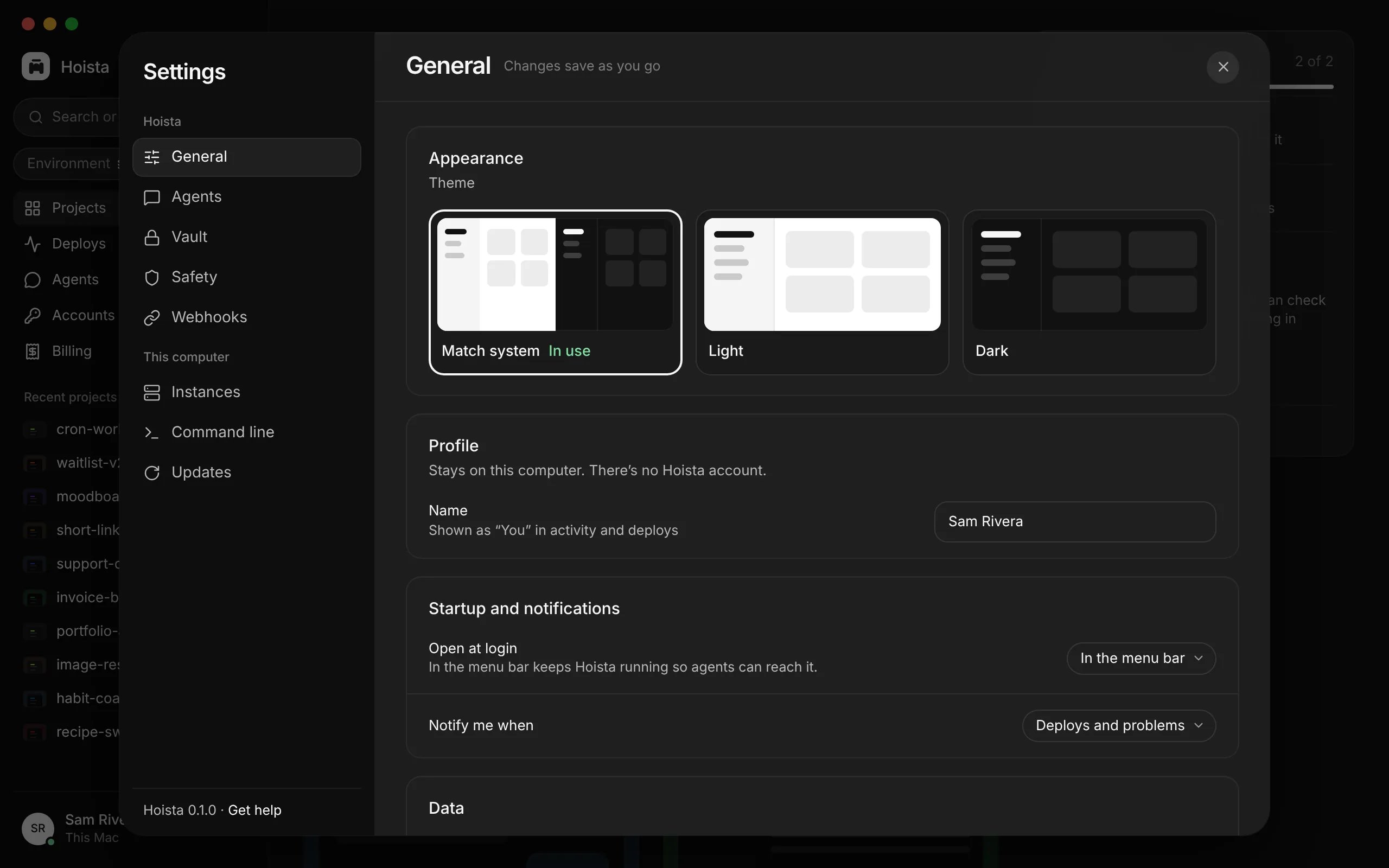
Settings → General. The sections on the left are listed below.
When an agent asks to do something sensitive, Desktop shows the request with its target. See approvals.
Related
Quickstart
Connect a provider and add your first project.
Logs and metrics
Read what the provider reports.
Approvals
What Desktop asks you before an agent acts.