

Connect
Neon connects with an API key:- Open API keys: Account settings → API keys → Create new API key. Name it Hoista.
- Copy the key. It starts with
napi_and Neon shows it once. - In Desktop, open Accounts, choose Neon, paste the key and pick the organization.
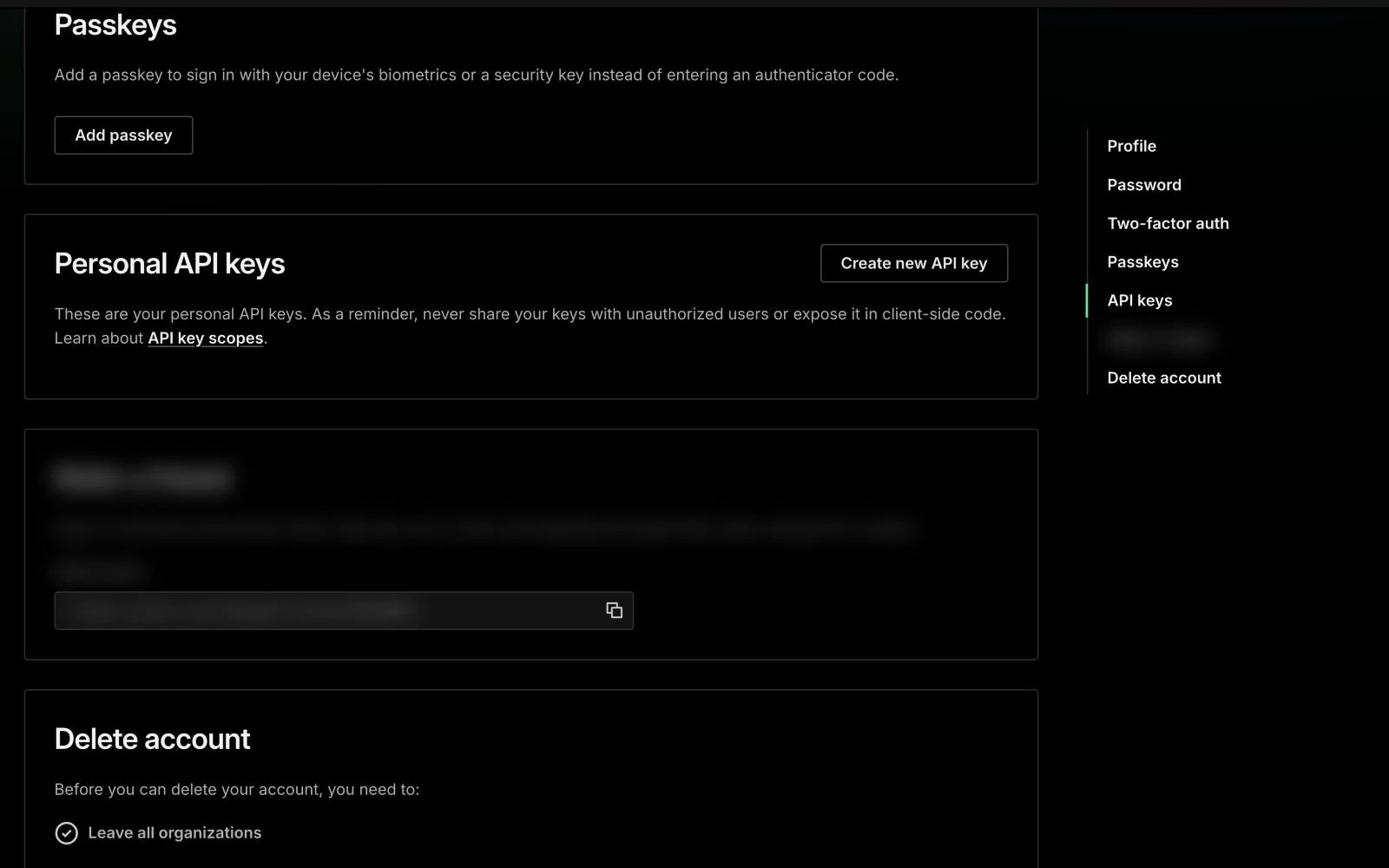
Neon’s API keys page, captured November 2026. Personal details are blurred. If yours looks different, the names in the steps still match.
hoist accounts add neon --name NAME --token-stdin, and add --account <organization-id> if the token reaches more than one organization.
What you can do
- Create a Neon project with a Postgres database.
- Let a deploy plan create the database and pass its connection string to your app as
DATABASE_URL. - See compute and data transfer on Metrics. Neon keeps this history on paid plans only.
- See the organization’s plan usage this month on Billing: compute hours, storage and data transfer. This also needs a paid plan.
- Export a database with
hoist db export <resource>. This needspg_dumpwhere Hoista runs;hoist toolsshows whether it is found. - Run Neon’s own operations from the Neon tab.
- Delete a Neon project after you confirm it by name.
Bring in existing resources
Hoista looks for projects when you connect. In Desktop, add them as described in Bring in an existing project. From the CLI:--project my-app adds the database to an existing project. Use --new <name> to start a new one. Projects start in watching mode. Run hoist projects manage my-app when you want Hoista to make changes. To look again, run hoist accounts refresh <account> with the name or ID from hoist accounts.
Related
Providers
What Hoista supports on each provider.
Connect hosting accounts
Connect, check and rotate accounts.
Bring in a project
Add what an account already runs.