

Connect
Render connects with an API key:- Open API Keys: Account Settings → API Keys → Create API Key. Name it Hoista.
- Copy the key.
- In Desktop, open Accounts, choose Render, paste the key and pick the workspace.
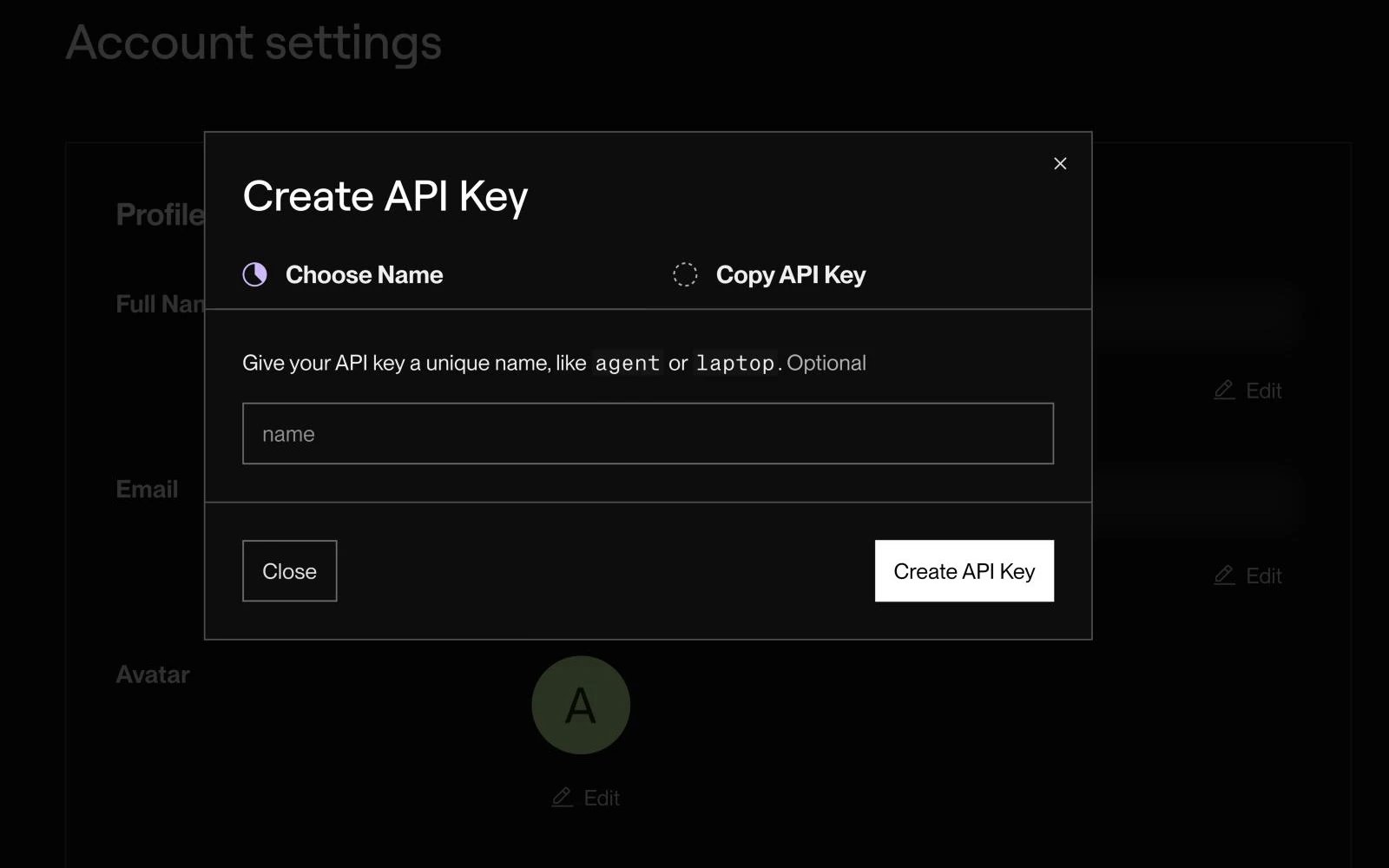
Render’s API Keys page, captured November 2026. Personal details are blurred. If yours looks different, the names in the steps still match.
hoist accounts add render --name NAME --token-stdin, and add --account <workspace-id> if the token reaches more than one workspace.
What you can do
- See a service’s deploys, environment variables, custom domains, disk and settings on the Render tab.
- Set environment variables on the Variables tab.
- See metrics on Metrics.
- Create a service from a GitHub repository (a web service, static site, background worker or cron job), or a Postgres or Key Value database. Workers and cron jobs need Render’s paid Starter plan.
- Use Render’s own operations from the Render tab.
- Delete a service at Render after you confirm it by name.
Bring in existing resources
Hoista looks for services when you connect. In Desktop, add them as described in Bring in an existing project. From the CLI:hoist projects manage my-app when you want Hoista to make changes. To look again, run hoist accounts refresh <account> with the name or ID from hoist accounts.
Related
Providers
What Hoista supports on each provider.
Connect hosting accounts
Connect, check and rotate accounts.
Bring in a project
Add what an account already runs.